




Signing documents via Documentolog API
Fast launch and legal force
Document

In progress

Signing

Completed
About the integration
Legally significant document signing in your product
Who this solution is for:
Banks and fintech companies: loan agreements, contracts, supplementary agreements, etc.
B2B SaaS systems: contracts, acts, and NDAs
Marketplaces: reconciliation acts, contracts with sellers/buyers
Other types of companies
Documentolog API capabilities:
Creating documents and sending them for signing via API request
Using the legally significant Documentolog infrastructure
Support for multiple signing methods: EDS, Egov QR, SMS, Adobe Sign
Embedding the signing process via iframe into your interface
Receiving the signing result via Webhook
Process description
Sending and signing a document
- The initiator uploads the contract file to the system — PDF, Word, Excel and other formats are supported.
- The initiator specifies the recipient — by phone number, IIN, BIN, or email.
- The initiator chooses the sending type: view only or signing.
- The initiator clicks «Send» and, if necessary, signs the document themselves — after which the document is sent to the recipient.
- The recipient receives a link or notification and opens the document on their device. If the recipient is registered in Documentolog Business, the document will appear in their system automatically.
- The recipient independently chooses a convenient signing method and signs the document.
- The initiator receives a notification about the signing and the finalized file
The recipient did not sign the document
The recipient opens the document on their device:
- If the recipient decides not to sign — they click «Reject». The initiator immediately receives a notification and can contact the recipient to clarify the reasons.
- If the recipient closed the document without making a decision — the link remains active for 30 days. The initiator sees the «Not signed» status and can send a reminder.
Developer documentation
This documentation describes the process of obtaining an access token and using it for embedding into an iframe.
This is necessary for working with documents and signing them via API
To begin integration, you need to register in the system:
On the https://documentolog.com/ website, click "Start for free" and register in the Documentolog Business system.
To gain access to the Documentolog API, you need to purchase the Business plan. More details: https://documentolog.com/tariffs
After paying for the plan, go to the "Integrations" section
Go to the "API Documentolog" tab
Part 1: Getting the Access Token
1.1 Access Token request
To get the access token, execute the following cURL request:
36 lines
01
02
03
04
05
06
07
08
09
10
11
12
13
14
15
16
17
18
19
20
21
22
23
24
25
26
27
28
29
30
31
32
33
34
35
36
curl --location 'https://apibusiness.documentolog.com/json/external/oauth/token' \
--header 'api-key: {{api-key}}' \
--header 'Content-Type: application/json' \
--data '{
"aAttachments": [
"https://business.documentolog.com/rct/sample.pdf"
],
"sSetWebhookUrl": "https://your-server.com/webhook",
"iSendToRecipient": 1,
"mRecipient": [
"000000000000"
],
"mPhonesForSms": [
{
"enableBMG": false,
"phone": "+X (XXX) XXX-XX-XX",
"fio": "Simple name",
"iin": "",
"type": "sms"
}
],
"iRecipientSignatureRequired": 1,
"mAvailableSignatureMethodsForRecipient": [
"eds",
"egov-qr",
"adobe-sign",
"sms"
],
"mAvailableSignatureMethods": [
"eds",
"egov-qr",
"adobe-sign",
"sms"
],
"sSender": "000000000000"
}'
1.2 Request parameters
Request body parameters:
aAttachments — array of links to files (supported formats: docx, doc, xlsx, xls, pptx, ppt, pdf, rar, zip, rtf, tiff, jpeg, jpg, png, gdoc). The file name length without the extension must not exceed 32 characters
sSetWebhookUrl — URL to receive webhook notifications about the document status (sending, signing, completion)
iSendToRecipient — whether to send the document to the recipient (1 = yes, 0 = no)
mRecipient — list of recipients (IIN, BIN, phone number, or email can be used)
mPhonesForSms — array of objects for sending SMS signatures
enableBMG — whether to use the BMG service for sending SMS
phone — recipient phone number in the format +X (XXX) XXX-XX-XX
fio — full name of the recipient
iin — IIN of the recipient
type — sending type (sms)
iRecipientSignatureRequired — whether the recipient's signature is required (1 = yes, 0 = no)
mAvailableSignatureMethodsForRecipient — signing methods available to recipients when opening the document (eds, egov-qr, adobe-sign, sms)
mAvailableSignatureMethods — signing methods available to the sender in the iframe
sSender — identification number of the sender (IIN or BIN)
1.3 Request result
A successful response will have the following format:
8 lines
01
02
03
04
05
06
07
08
{
"status": 1,
"data": {
"access_token": "eyJ0eXAiOiJKV1QiLCJhbGciOiJIUzI1NiJ9...",
"scope": "document-create|document-sign|document-show",
"token_type": "Bearer"
}
}
access_token — token that must be used to access resources. Valid for 30 days
scope — available operations with documents
token_type — token type, usually "Bearer"
1.4 Authorization error codes
In case of authorization problems, the API returns the following error codes:
| Error code | HTTP status | Description and solution |
|---|---|---|
| invalid_client | 401 Unauthorized | Invalid api-key. Check the api-key header value in your personal account. |
| unauthorized | 401 Unauthorized | access_token has expired (valid for 30 days) or was not provided. Get a new token by repeating the request to oauth/token. |
| status: 0 | 200 | Logical request error. Details are in the message field of the response. |
1.5 Passing the token in requests
After receiving the access_token, pass it in the Authorization header:
1 line
Authorization: Bearer eyJ0eXAiOiJKV1QiLCJhbGciOiJIUzI1NiJ9...
Important: access_token is passed only in the Authorization: Bearer header. The sParams parameter is used exclusively for iframe embedding and is not a replacement for the authorization header.
Part 2: Embedding the token into iframe
After receiving the access token, you can embed it into an iframe for further use. One token is tied to one document.
2.1 URL for embedding
Use the following URL, substituting the received access token:
1 line
01
https://apibusiness.documentolog.com/external/sign/embedded?sParams={{data.access_token}}
Embedding example:
1 line
01
<iframe src="https://apibusiness.documentolog.com/external/sign/embedded?sParams=eyJ0eXAiOiJKV1QiLCJhbGciOiJIUzI1NiJ9..." width="400px" height="600px"></iframe>
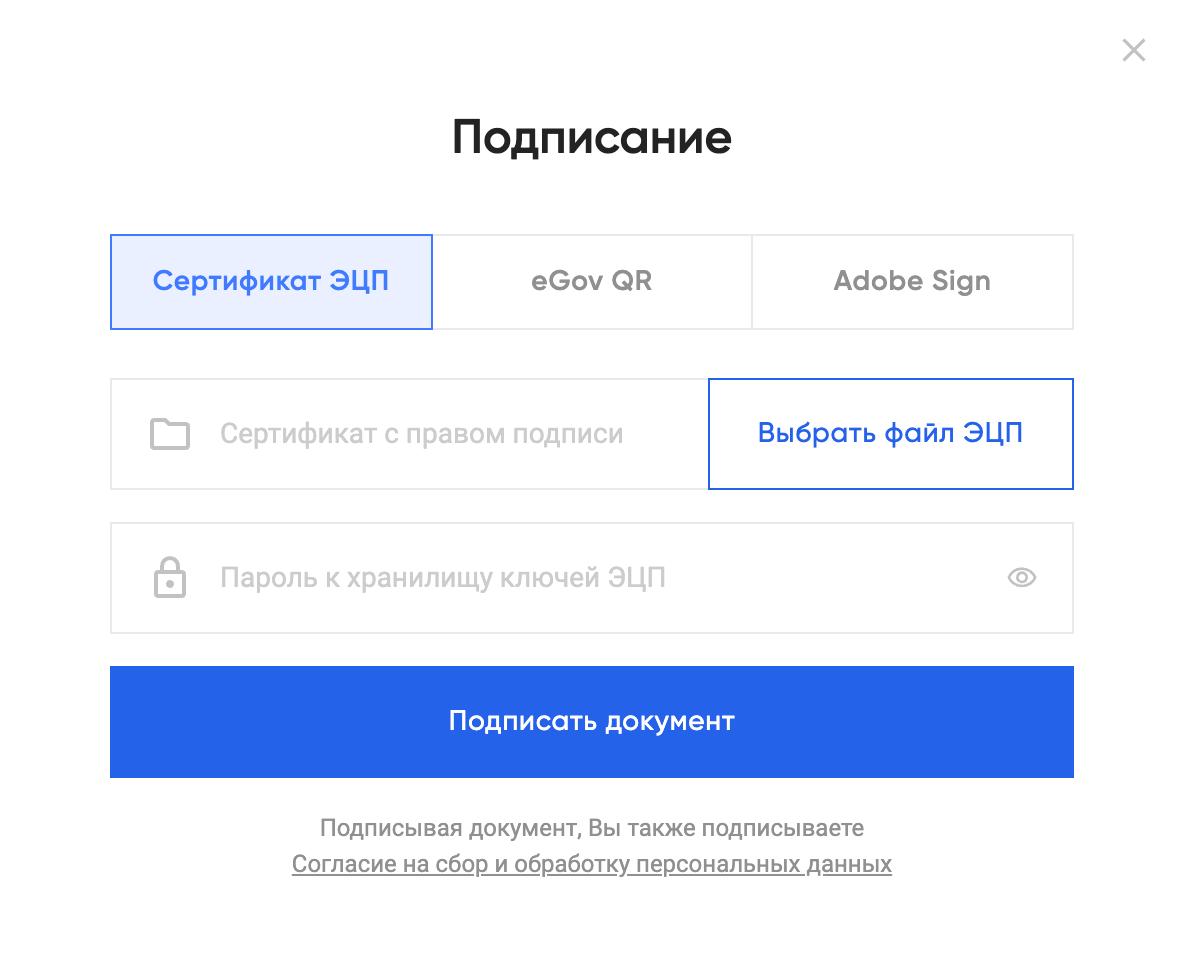
Appearance of the iframe for signing the document
Part 3: postMessage event
3.1 Signing result
When the signing process completes, the iframe sends a message to the parent window using the window.parent.postMessage function. Example message:
6 lines
01
02
03
04
05
06
{
isDocumentolog: true,
type: 'sign',
success: true | false,
signType: 'eds' | 'egov_gr'
}
isDocumentolog — flag indicating the use of the Documentolog system (always true)
type — event type
success — signing result
signType — signature type used when signing (e.g. 'eds')
3.2 Closing the iframe
When the user attempts to close the iframe, the iframe sends a message to the parent window using the window.parent.postMessage function. Example message:
5 lines
01
02
03
04
05
{
isDocumentolog: true,
type: 'user-close',
success: false,
}
isDocumentolog — flag indicating the use of the Documentolog system (always true)
type — event type
success — signing result
3.3 Document already signed
If the document for the given token has already been signed, the iframe terminates immediately and sends an event to the parent window:
5 lines
01
02
03
04
05
{
isDocumentolog: true,
type: 'already-signed',
success: true,
}
type — event type
success — signing result
Part 4: Webhook
4.1 Intermediate events
During the document lifecycle, intermediate events are sent to the webhook URL.
4 lines
01
02
03
04
{
"event": "document_sent",
"doc_id": "KZ000000000000000001234567"
}
8 lines
01
02
03
04
05
06
07
08
{
"event": "signer_signed"|"signer_declined",
"doc_id": "KZ000000000000000001234567",
"signer": {
"name": "Сейтқали Нұрлан",
"recipient": "000000000000"
}
}
event — event type: document_sent — the document was sent to recipients, signer_signed — signed, signer_declined — declined, document_completed — all parties have signed
doc_id — unique document identifier. Matches the DOC ID in the "Documents" section. The same across all events of a single document
signer — signer data (present in the signer_signed and signer_declined events)
name — full name of the signer
recipient — IIN, BIN, phone, or email of the signer
4.2 Document completion
The final notification is sent to sSetWebhookUrl when all participating parties have signed the document:
24 lines
01
02
03
04
05
06
07
08
09
10
11
12
13
14
15
16
17
18
19
20
21
22
23
24
{
"event": "document_completed",
"doc_id": "KZ000000000000000001234567",
"document": "https://apibusiness.documentolog.com/external/document/view-document/dcs_universal_type/1234",
"download_all_files": "https://apibusiness.documentolog.com/external/media/download-many?files=4444",
"download_files": [
{
"name": "sample.pdf",
"link": "https://apibusiness.documentolog.com/external/media/download/4444"
}
],
"download_files_with_eds": [
{
"name": "sample.pdf",
"link": "https://apibusiness.documentolog.com/external/media/download-eds/dcs_universal_type/1234/4444"
}
],
"download_files_with_eds_ez": [
{
"name": "sample.pdf",
"link": "https://apibusiness.documentolog.com/external/media/download-eds-ez/dcs_universal_type/1234/4444"
}
]
}
event — event type (document_completed)
doc_id — unique document identifier. Matches the DOC ID in the "Documents" section. The same across all events of a single document
document — link to the document
download_all_files — link to download all files
download_files — list of links to download files
download_files_with_eds — list of links to download files with EDS
download_files_with_eds_ez — list of links to download files for ezSigner
4.3 Delivery policy (retry)
The system will resend the webhook event at the following intervals: 5, 15, 30, 60, 120, 240, 480, 960, 1440 minutes. After the last attempt, the system will mark the event as failed and stop resending.
4.4 File link lifetime
Links from the download_files, download_files_with_eds, and download_files_with_eds_ez fields that arrive in the document_completed event:
| Field | Link lifetime |
|---|---|
| download_files | The link is permanent and remains valid as long as the document exists in the system. |
| download_files_with_eds | The link is permanent and remains valid as long as the document exists in the system. |
| download_all_files | The link is permanent and remains valid as long as the document exists in the system. |
Important: links do not open directly in the browser. When following a link, the browser will ask for a login and password — this is expected behavior when the authorization header is missing. To download, pass the same access_token that was used to create the document:
4 lines
01
02
03
04
curl --location \
'{{ссылка из webhook}}' \
--header 'Authorization: Bearer {{access_token}}' \
--output document.pdf
Via Postman: Authorization tab → Bearer Token → paste the token → Send.
Part 5: API limitations and assumptions
The following scenarios are not supported via the API. Attempting to implement them will result in an error or unexpected behavior.
| Limitation | Explanation |
|---|---|
| A document cannot be created as a draft | The document is sent to the recipient immediately when create-document is called. Deferred sending via the API is not supported. |
| The sender (sSender) must be a signer | A document cannot be sent without the sender's signature. Disabling sender signing via the API is not possible. |
| Signing order cannot be configured | The API does not support specifying the order in which parties must sign the document. All participants get access at the same time. |
| Sender signing cannot be disabled | The mAvailableSignatureMethods field always applies to the sender. There is no parameter to exclude the sender from the signing chain. |
Part 6: Test environment
There is no public test environment. Testing is performed in the production environment using real data.
Testing recommendations
Use the test IIN/BIN from the accounts issued to you.
For aAttachments, specify a link to a small test PDF file.
For sSetWebhookUrl, use tools like webhook.site to capture events without a real server.